The Flexibility of Xfce
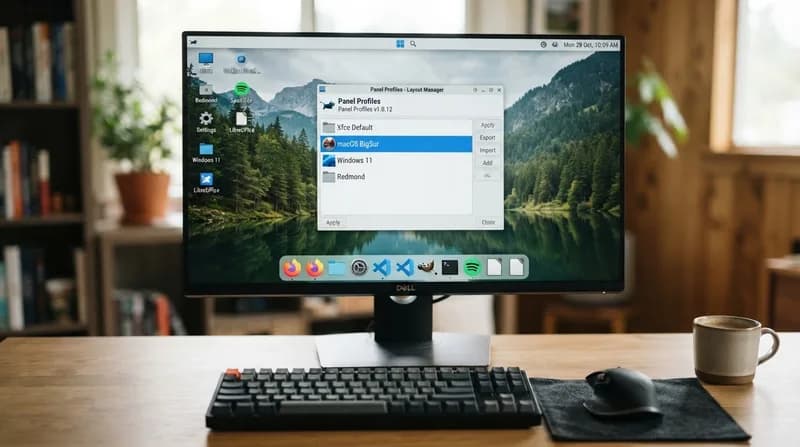
For three decades, Xfce has maintained a reputation as one of the most stable, lightweight, and efficient desktop environments in the Linux ecosystem. While many modern desktop interfaces lean toward fixed designs or heavy resource consumption, Xfce remains a blank canvas that prioritizes user control. One of its most powerful yet underutilized features is Panel Profiles, an optional utility that enables users to completely reshape their desktop layout to mirror other operating systems without the need for manual, time-consuming configuration.
Unlike other desktop environments that require deep dives into complex configuration dialogs, Panel Profiles acts as a high-level manager for desktop layouts. It allows users to switch between predefined styles on the fly, instantly altering the positioning of taskbars, app launchers, and status indicators. This makes Xfce an ideal choice for users who want the performance of a minimalist desktop but the aesthetic familiarity of macOS, Windows 7, or Ubuntu’s classic Unity interface.
The Core Layout Profiles
Panel Profiles comes equipped with several pre-built configurations, each tailored to a specific workflow preference. Whether you are seeking a traditional Windows-style taskbar or a more modern, dock-centric approach, the tool provides the infrastructure to execute these changes with just a few clicks.
Cupertino and Unity
For those who prefer a workflow similar to macOS or the historical Ubuntu Unity desktop, the Cupertino and Unity profiles are the go-to choices. Both utilize a global menu bar at the top of the screen, which can significantly improve screen real estate utilization on smaller displays. The Cupertino layout favors a center-aligned dock-like panel at the bottom, mimicking the classic Apple aesthetic, while the Unity profile places a full-height application launcher on the left edge of the screen, staying true to Canonical’s original design language.
Redmond and OpenSUSE
If you prefer the familiarity of the Windows paradigm, the Redmond and Redmond 7 profiles offer a straightforward approach. The Redmond layout provides a classic Windows 95-style taskbar with a simple application menu, perfect for minimalist users. The Redmond 7 profile upgrades this experience by adding a searchable Whisker menu, rectangular icon buttons, and a dedicated 'show desktop' utility, providing a modern feel that mirrors the comfort of the Windows 7 era. The OpenSUSE profile further enhances this by integrating the more capable Whisker menu into a single, efficient bottom-panel layout.
Prerequisites and Technical Implementation
While the tool is powerful, it does not function in a vacuum. To successfully deploy these profiles, users must be aware of the underlying dependencies required for each specific layout. Installing `xfce4-panel-profiles` is the first step, but because these layouts rely on specific plugins, users should be prepared to install supplementary packages to ensure full functionality.
- xfce4-appmenu-plugin: Essential for the global menu bar found in the Cupertino and Unity profiles.
- xfce4-windowck-plugin: Required for the Unity profile to correctly move window control buttons into the top panel.
- xfce4-indicator-plugin: Necessary for the proper functioning of status indicators in various Xubuntu-derived profiles.
- python3-psutil: A mandatory dependency for the Panel Profiles tool itself to manage panel configuration processes correctly.
By installing these plugins, the desktop environment gains the ability to render complex UI elements that standard Xfce installations lack. If a user encounters a scenario where a layout fails to load, it is almost exclusively due to a missing component. Once configured, Xfce retains these settings across sessions, offering a high-performance experience that remains as stable as it is customizable. As Xfce continues to evolve, tools like Panel Profiles ensure that it remains a top-tier choice for users who demand a personal, efficient, and highly adaptive workspace.